This is an imported post of mine from an older blog for historical purposes.
Many may argue against this, but Apple’s Mail.app is a decent-enough application for managing your email. The one major flaw I have with it is that while its rules feature is quite extensive, it doesn’t work for every situation. Specifically for sent emails. I spent a good deal of time figuring out how to make rules work on sent email and below is the solution I’ve come up with.
The background:
I currently host my email with FastMail and have multiple alias email accounts setup for a few different domains. I have a rule setup within the FastMail web interface that when I send an email from [email protected] it ends up in the domain1 sent folder. And very similarly with [email protected], etc.
When I set up the IMAP connection into Mail these rules no longer work. Setting up rules in Mail, like above, doesn’t work. I was quite surprised to see that be the case. Surely rules would be enacted for all emails? You would think, but in Apple’s Mail.app rules are only applied to unread, incoming messages.
The Solution:
Open Mail Preferences
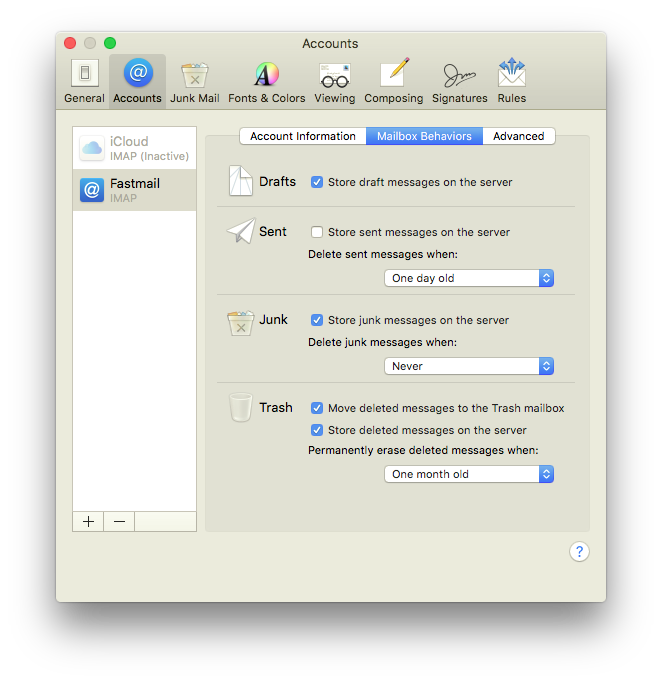
On the Accounts tab select your account and then select Mailbox Behaviors. Uncheck “Store sent messages on the server”. I also set to delete the sent messages after one day. You can set it to whatever you would like. I wouldn’t recommend “Never”, unless you plan on manually deleting them.
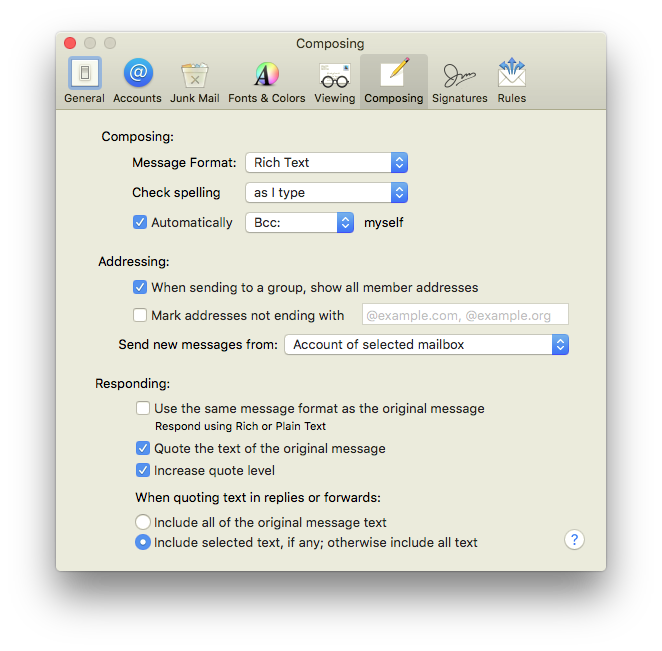
Now head over to the Composing tab. Here check the box by “Automatically Bcc: myself”. It may have “Cc:” selected by default, make sure to change it to “Bcc:”.
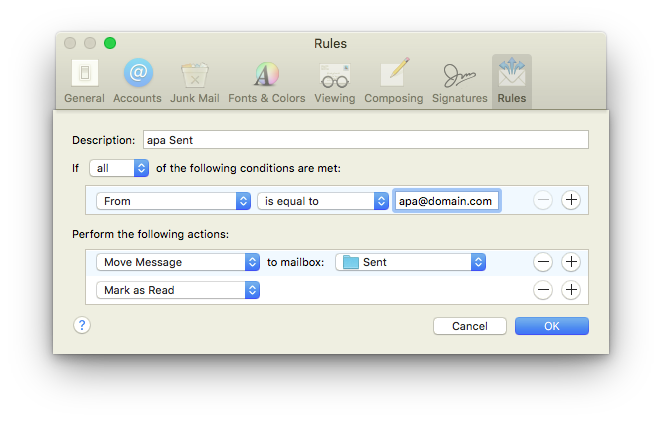
Finally, go to the Rules tab. Select “Add Rule” and name it whatever you want. Select “any” or “all” for “If any/all of the following conditions are met:”, depending on additional rules you may put in. If you are copying what I did, this setting won’t matter. In the first box below, select “From”, “is equal to”, and type in your email. Under perform the following actions you will choose two options. First select “Move Message” and choose the mailbox you want the sent email to go. Then click the +. For the second box, choose “Mark as Read”. Click OK. Click Don’t Apply on the message popping up about applying the rules to the selected mailboxes.
That’s it! When you send an email now with Mail from one of your aliases, it will now be put into the proper folder.
Note that the Sent mailbox under Mailboxes in the sidebar will now be a local sent folder. Your IMAP sent folder will appear under your account in the sidebar.
While not the most elegant solution, it does work.